The framework and validation of the database are important stages in our relationship. They optimize your use of Fairways Debt:
- Accurate reporting and debt audits
- Trustworthy debt statements
- Relevant recommendations from your consultant
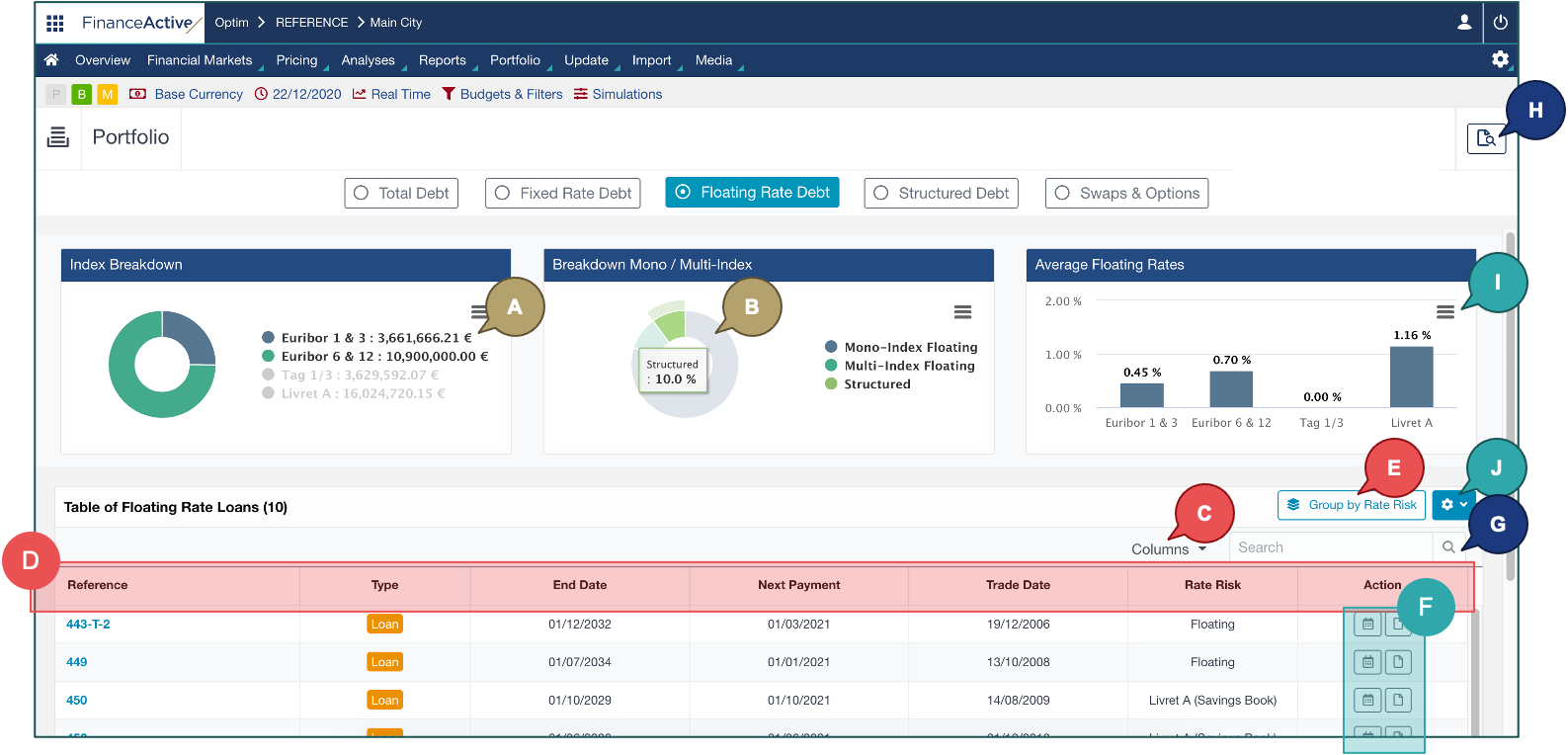
The Floating Rate Debt page gives you an overview of your transactions with floating rates.
- Log in to Fairways Debt, and load the customer account, if relevant.
- Navigate to Portfolio > Your Debt.

- Click Floating Rate Debt.
Note: The tab only displays if your portfolio includes at least a transaction associated with a floating rate.
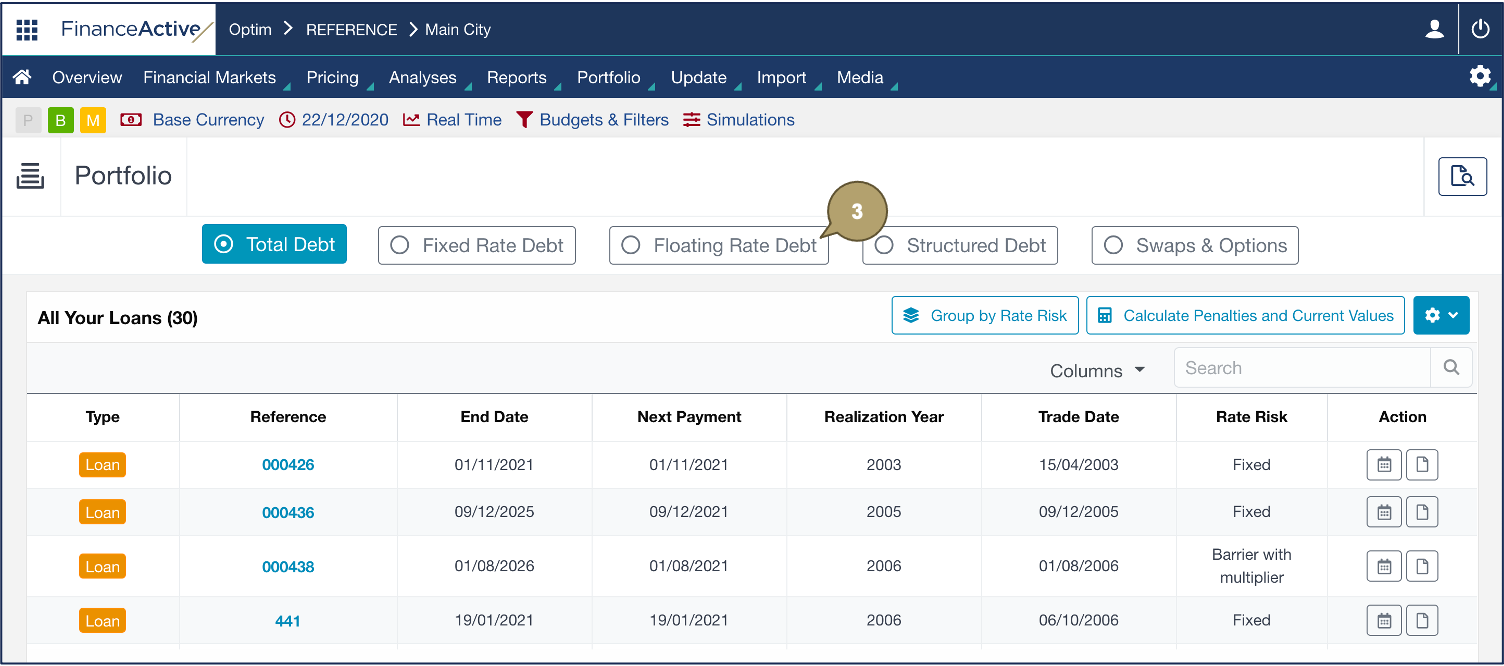
The Floating Rate Debt page displays.
|
# |
Description |
|---|---|
|
A |
Click a criterion to filter the graph data:
|
|
B |
Hover over a data to display its details. |
|
C |
Select the data to display. |
| D |
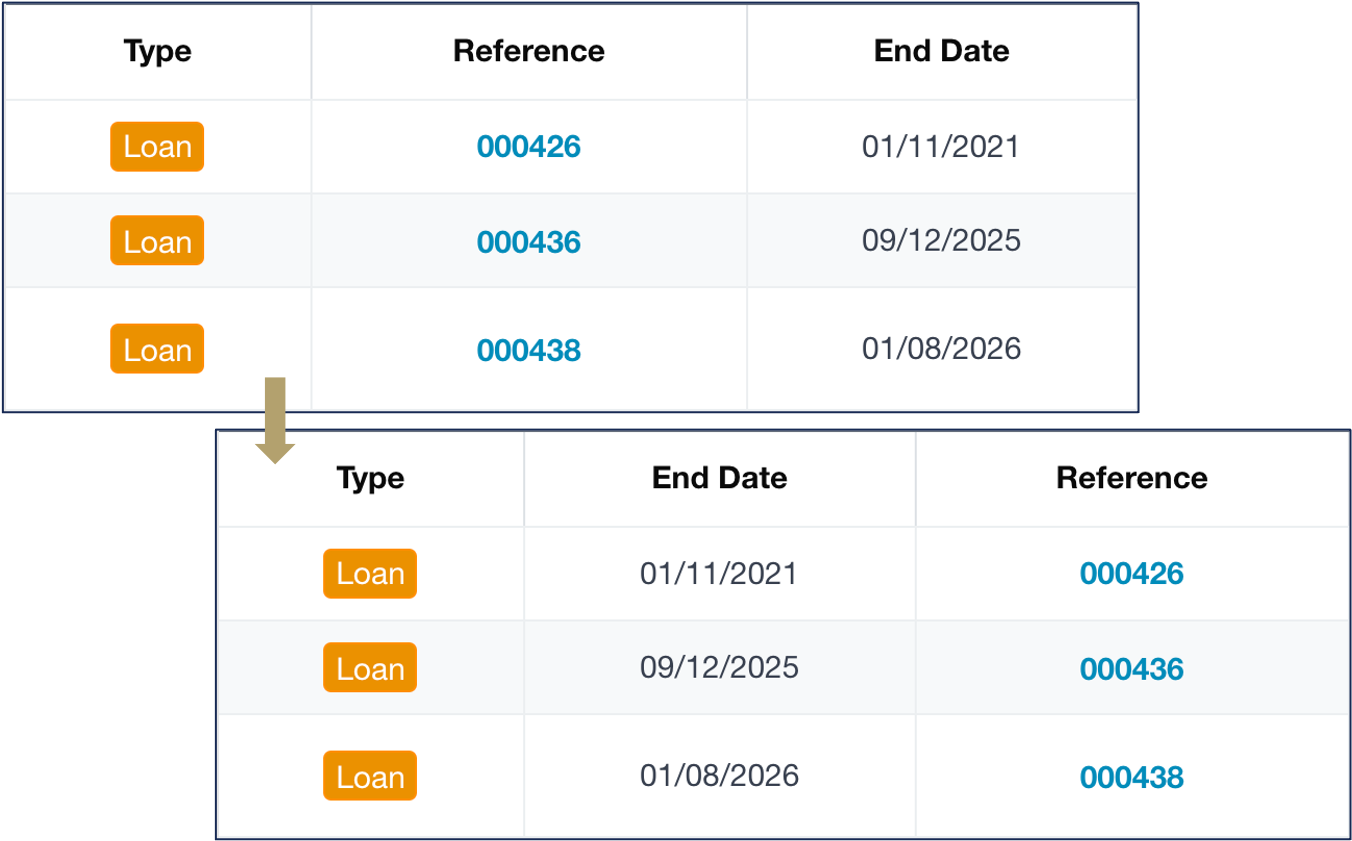
Order data:
In this example, we order End Date before Reference.
|
|
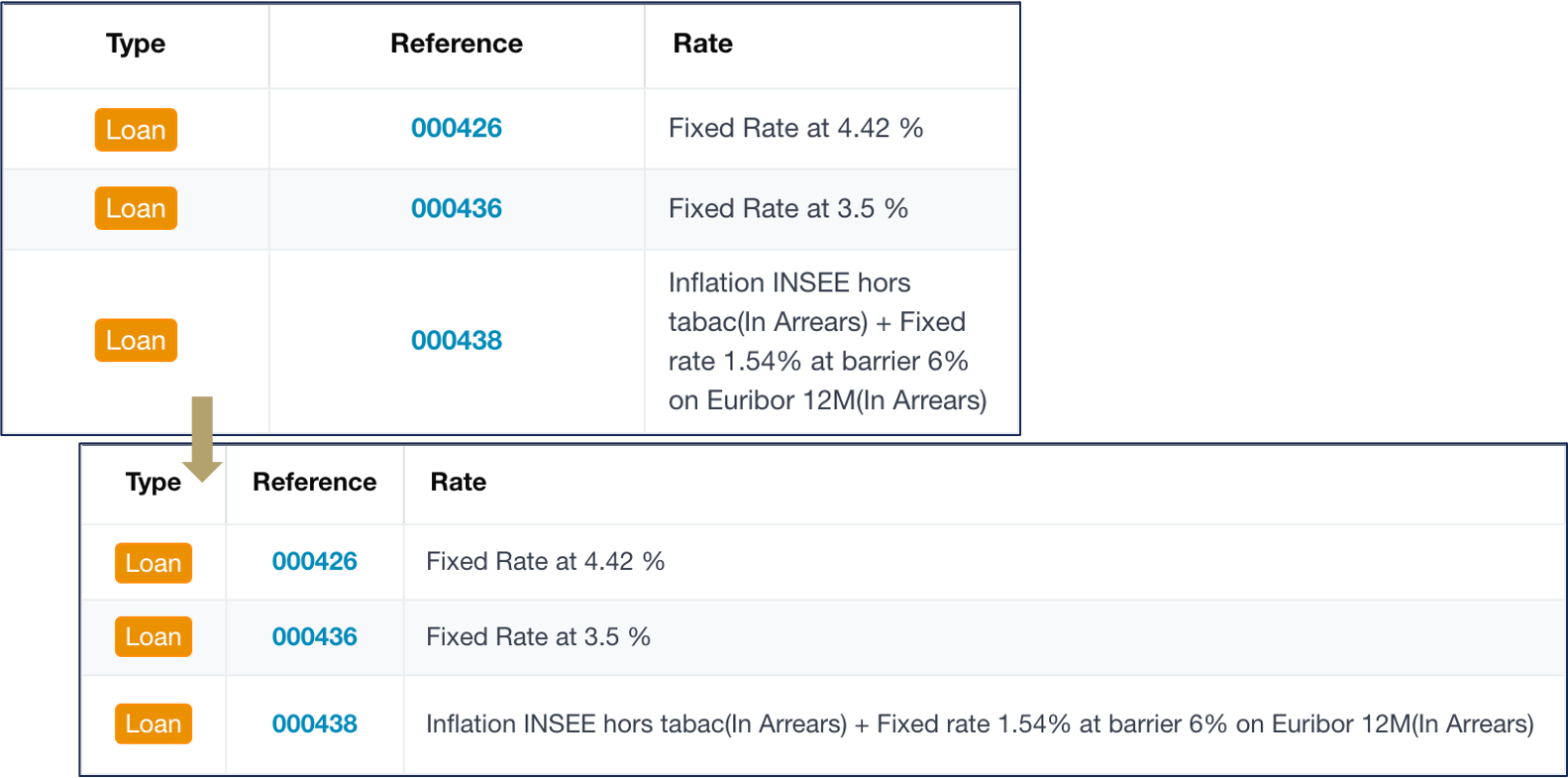
Resize the column width:
In this example, we reduce the Type and Reference columns and enlarge the Rate column.
|
|
|
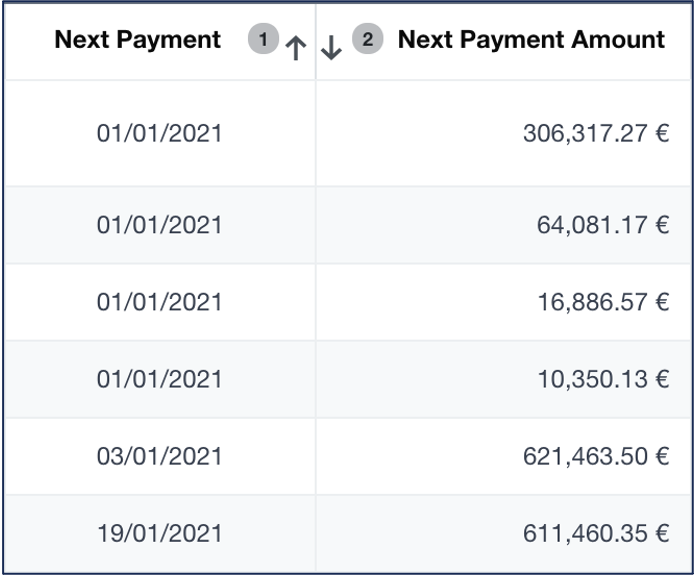
Click a header to sort the transactions following a specific criterion. To sort using multiple criteria:
In this example, the data is sorted by the next payment date in the ascending order, then by the amount in the descending order.
|
|
| E |
Group the transactions by rate risk. |
| F |
Open the transaction details. Note: Clicking the type and the reference also enables you to open the transaction profiles. |
| G |
Search for a transaction within the list. |
| H |
Search for a transaction within the whole portfolio. |
| I |
Download the graphs. |
| J |
Download the table to Excel. |